
App Push Notification Checklist: Why Sending, Delivery, Display, and Opens Differ
Define acceptance tests for app push notifications: Android and iOS permissions, channels, app state, registrations, expiry, reporting limits, and tap behavior.
Investigating a push notification issue means separating the server's send record from what happens on the phone and after a tap. A successful send alone does not establish that a notification appeared. This checklist helps app operators and teams commissioning development agree on evidence, responsibilities, and acceptance tests.
1 Define completion from the send request through the open
A requirement that says only “implement push notifications” leaves completion unclear. Agree on evidence for five separate stages.
- Send request: the server selects the recipient and content, then sends the request.
- Service acceptance: the messaging service accepts the request.
- Device delivery: the message reaches the target device.
- Display: the notification appears on the device or in its notification center.
- Open: the person taps the notification to enter the app.
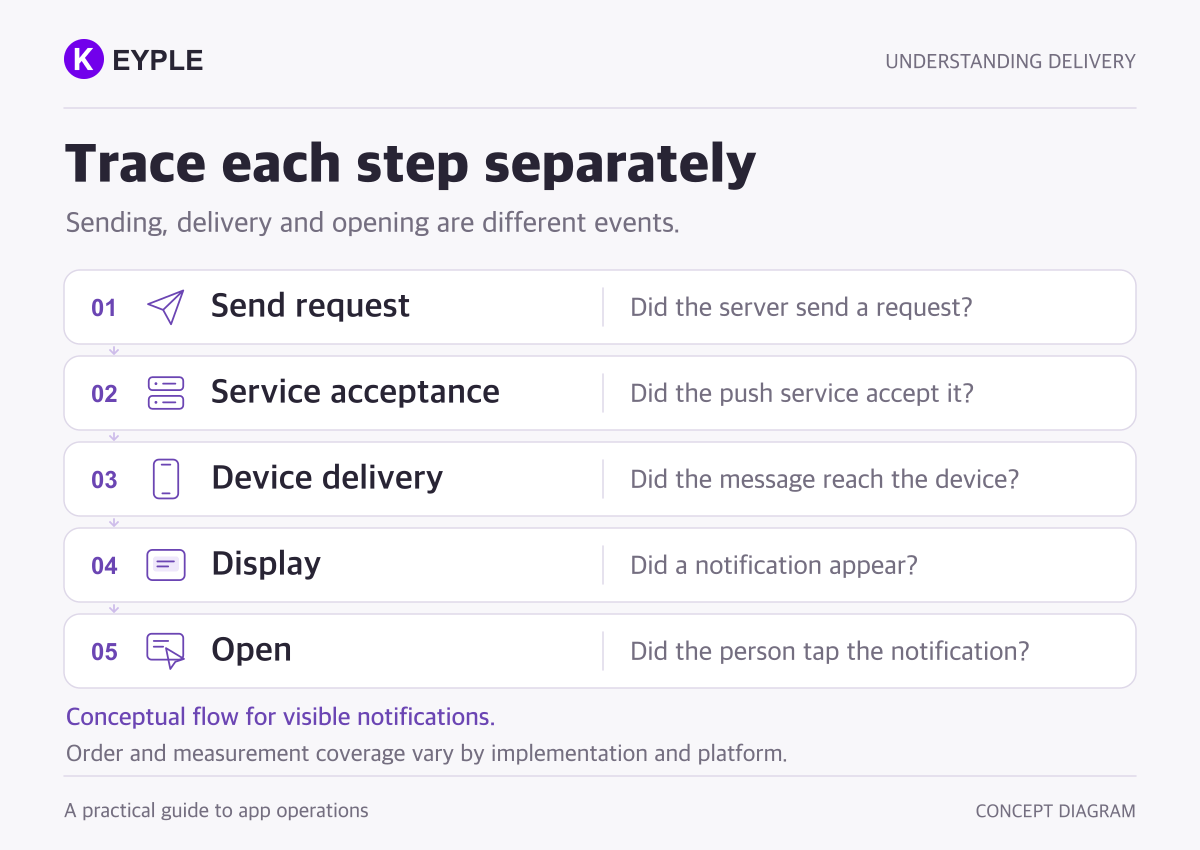
An FCM message ID confirms acceptance for delivery, not arrival on a device. Interpret the server response using Firebase's message lifespan guidance.
This sequence describes visible notifications. Data messages with no display requirement need separate criteria. Display also does not establish that someone read the content.
2 Check permission and display settings
Android 13 and later require runtime permission for ordinary notification display. Verify the device's actual permission state: a fresh installation and an upgraded device may differ. See Android notification permission.
On Android 8.0 and later, check the relevant notification channel as well. App-level permission does not establish that a particular category is visible or audible. Increasing delivery priority is not a substitute for checking channel settings. See Android notification channels.
On iOS, check authorization and the permitted interactions, including alerts, sounds, and badges. Provisional authorization can deliver quietly. No sound is therefore not proof of non-delivery. See Apple notification authorization.
A support form should distinguish a missing notification from a missing banner or sound. That distinction helps the team investigate the relevant part of the implementation.
3 Separate app state from message type
FCM notification messages do not display a visible notification by default while the app is in the foreground. Test the app's presentation behavior while it is in use and while it is in the background. See Firebase message handling by app state.
An iOS silent background notification is a signal to refresh app content without a visible alert. It is different from a visible notification received while an app is in the background. The system may delay or throttle it, and delivery is not guaranteed. See Apple background updates.
KEYPLE recommends recording foreground, background, and not-running cases separately, including how the app reached the last state. Returning to the home screen and explicitly force-quitting the app should not be recorded as the same test condition.
4 Maintain registrations and choose expiry settings
Check that the server's notification targets match current app installations. Verify registration updates, refresh timestamps, and handling of invalid registrations. Do not assume a token or other registration identifier remains unchanged indefinitely.
FCM's UNREGISTERED response supports removing that registration. INVALID_ARGUMENT can also indicate a payload problem, so it is not sufficient evidence of a bad registration on its own. See Firebase registration management.
Messages for offline devices can expire before delivery. Choose Android TTL and iOS expiry settings for the notification's purpose. The storage period described in Firebase's message lifespan guidance is not a delivery guarantee.
For example, decide what happens when a reminder arrives after an appointment has ended. KEYPLE recommends fetching the current server state when the notification opens and explaining when its destination is no longer available.
5 Understand what reports measure
FCM's Received metric is Android-only. Impressions cover Android notification messages displayed while the app is in the background. Opens also cover notifications received in the background. Do not compare different platforms or message types as if their denominators were identical.
General reporting can lag by up to 24 hours; the aggregated Android Data API can lag by up to five days. Analytics configuration, collection choices, sampling, and privacy thresholds affect coverage. Check Firebase delivery reporting before interpreting counts.
KEYPLE recommends using dashboard trends alongside evidence for individual incidents. Link a test identifier to the reported time, and mark an unobserved stage as unconfirmed instead of assuming it failed.
6 Test account changes and notification destinations on physical devices
The following are KEYPLE's recommended acceptance checks. Use test accounts on physical Android devices and iPhones, recording supported operating systems and app versions.
- After allowing or denying permission, verify that the app's explanation matches its display behavior.
- Check the agreed behavior in foreground, background, and not-running conditions.
- Sign out of account A and into account B on the same device. Check that a stale association does not target new account A notifications to that device.
- Verify that tapping a notification opens the intended detail screen, including after any required sign-in.
- Check the handling of deleted or expired destinations and messages arriving after connectivity returns.
Include authorization in account-switching tests. An item identifier in a notification must not grant access to another account's information.
Record expected behavior, the observed result, and available evidence. When permission is denied, acceptance means the agreed explanation and handling work; it does not mean forcing a notification to appear.
7 Define incident information and development scope
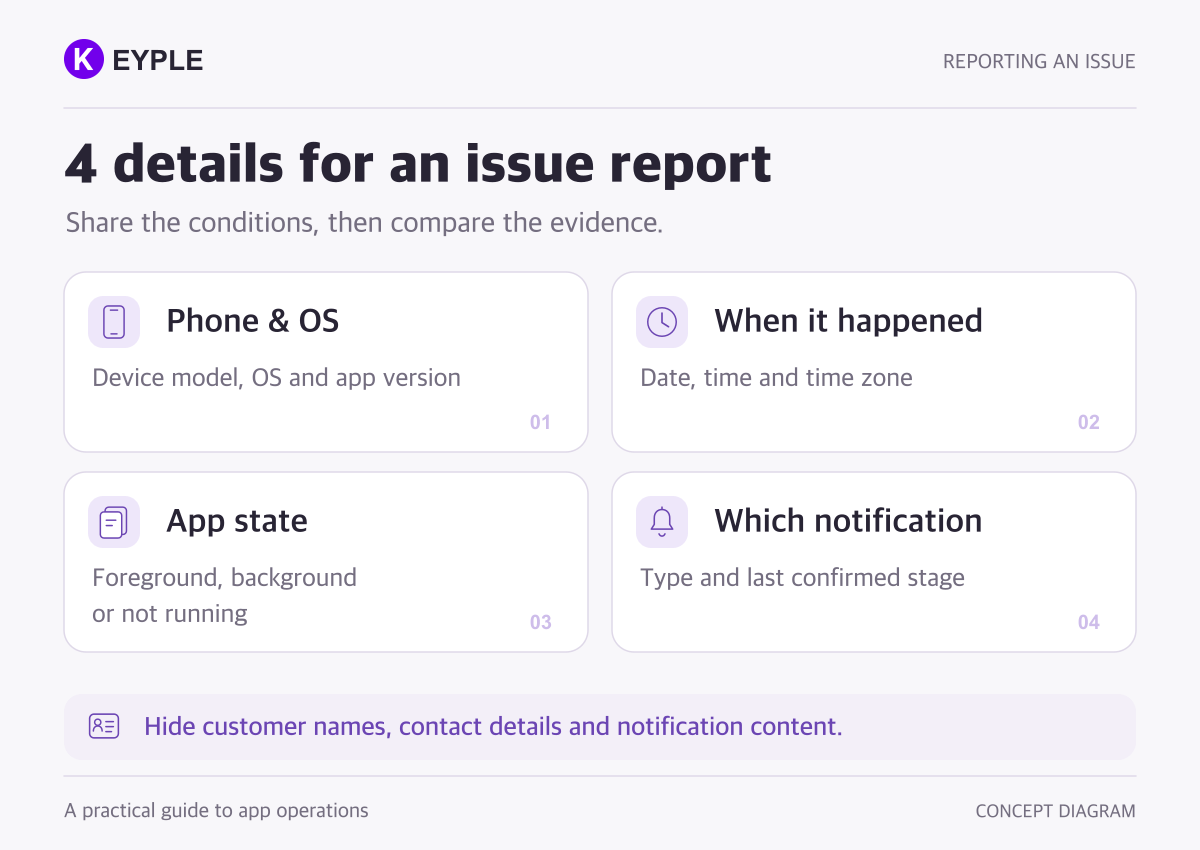
Give the development team the incident time and time zone, device and operating system, app version, app state, notification type, and last confirmed stage. Correlate records with a test identifier. Do not include passwords or full push tokens in an ordinary support inquiry.
For outsourced development, assign responsibility for sending, registration updates, permission guidance, app-state handling, navigation after a tap, operational records, and physical-device acceptance tests. One successful test message is insufficient evidence for the entire feature.
Passing the checklist does not guarantee immediate delivery under every condition. Define supported conditions, how delays are investigated, and the scope of incident response.
See our Flutter app maintenance service to scope a review of an existing app. An initial inquiry needs reproduction conditions and confirmed stages, rather than real customer information.
Frequently asked questions
What should I check when a developer says the send succeeded?
Ask which stage that record confirms. Separate service acceptance, device delivery, and display, then connect available evidence using a test identifier and incident time.
Should we test notifications when switching accounts on one device?
Yes. KEYPLE recommends checking for stale notification targeting after sign-out and verifying that a notification opens only information the current account is authorized to access.
What belongs in a push notification development estimate?
Scope sending, registration updates, permission guidance, app-state handling, tap navigation, operational records, and physical-device tests separately. Define supported conditions and responsibility for investigating delays or failures.